

How to build API documentation with Thally: from setup to a live site
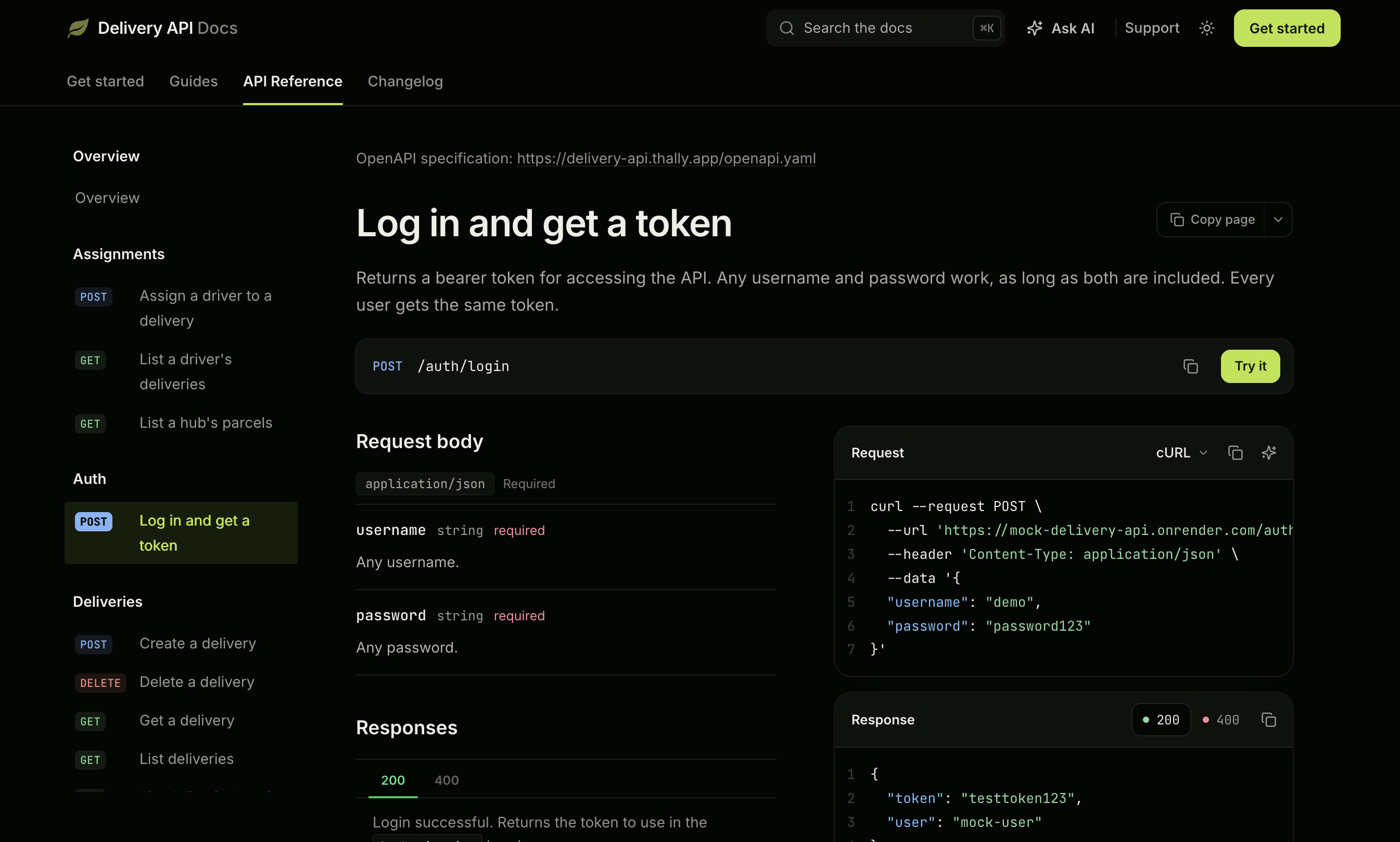
Every API needs docs, and many teams want to manage them the same way they manage code: in a GitHub repo, reviewed in pull requests, and published automatically. Thally is a docs platform built around that idea. Thally creates a GitHub repo for your docs. You write your pages locally, push your changes to that repo, and Thally checks them and publishes your site.
In this guide, you’ll build a live API docs site with Thally. By the end, your site will have:
- A home page
- A quickstart
- An authentication page
- A step-by-step guide
- An API reference generated from your OpenAPI file
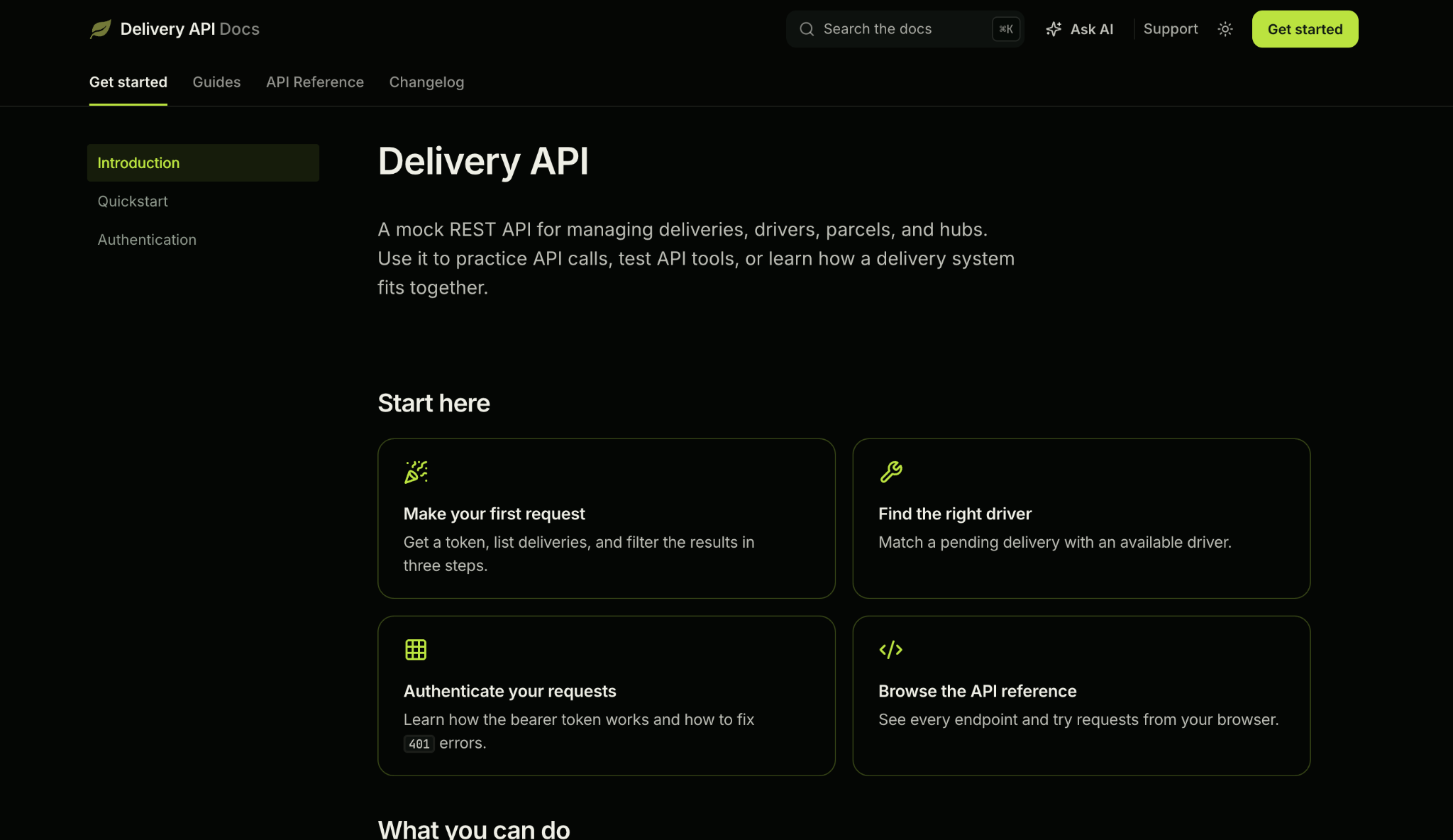
I’ll use the Delivery API as the example. It’s a mock API for managing deliveries, drivers, parcels, and hubs. You can follow along with it, or use your own API instead.
Here’s the finished site: delivery-api.thally.app.
Prerequisites
Before you start, make sure you have:
- A GitHub account. Thally stores your docs in a GitHub repo.
- Node.js and npm. You need them to run your site locally. Use Node.js 20 (version 20.19 or later), Node.js 22 (version 22.14 or later), or Node.js 24 and above. If you’re installing Node.js for the first time, pick the latest LTS version from nodejs.org.
- Git, to clone your repo and push changes.
- A code editor, like VS Code.
- An OpenAPI file for your API. This is optional. The starter includes a sample, so you can build the site first and add your own later.
You should also be comfortable with basic Git commands and Markdown.
Step 1: Create your site in Thally Cloud
Go to Thally Cloud and create an account. You can sign up with Google, GitHub, or your email and a password. This guide uses email and a password.
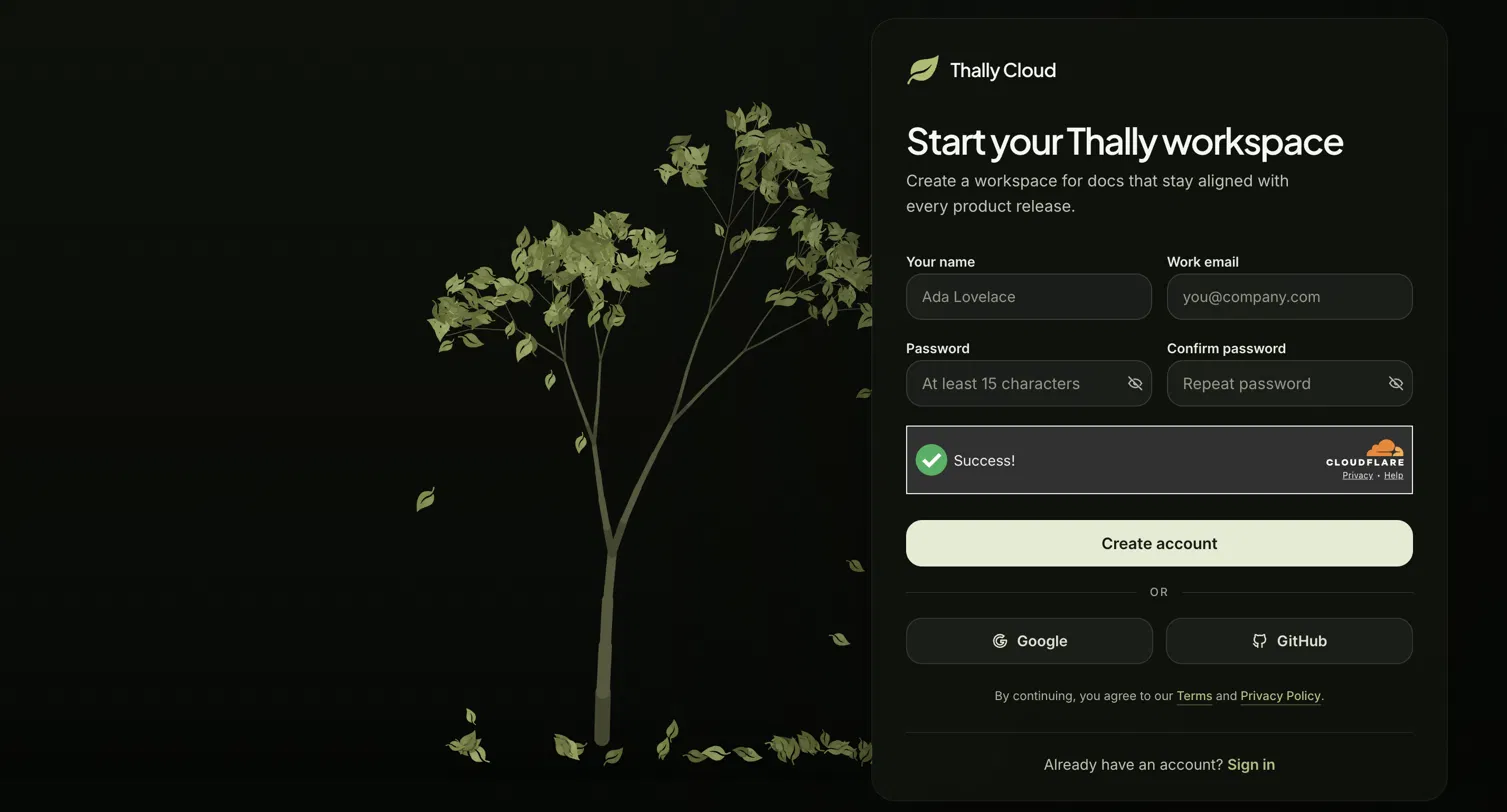
After you sign up, Thally walks you through four short steps:
- Verify your email: enter the 6-digit code Thally sends to your inbox.
- About your team: enter your company or project name, then choose your role and company size.
- Your docs goals: choose your main goal, such as Launch documentation. The other two questions, your current documentation tool and how you heard about Thally, are optional.
- Open your workspace: click Open workspace.
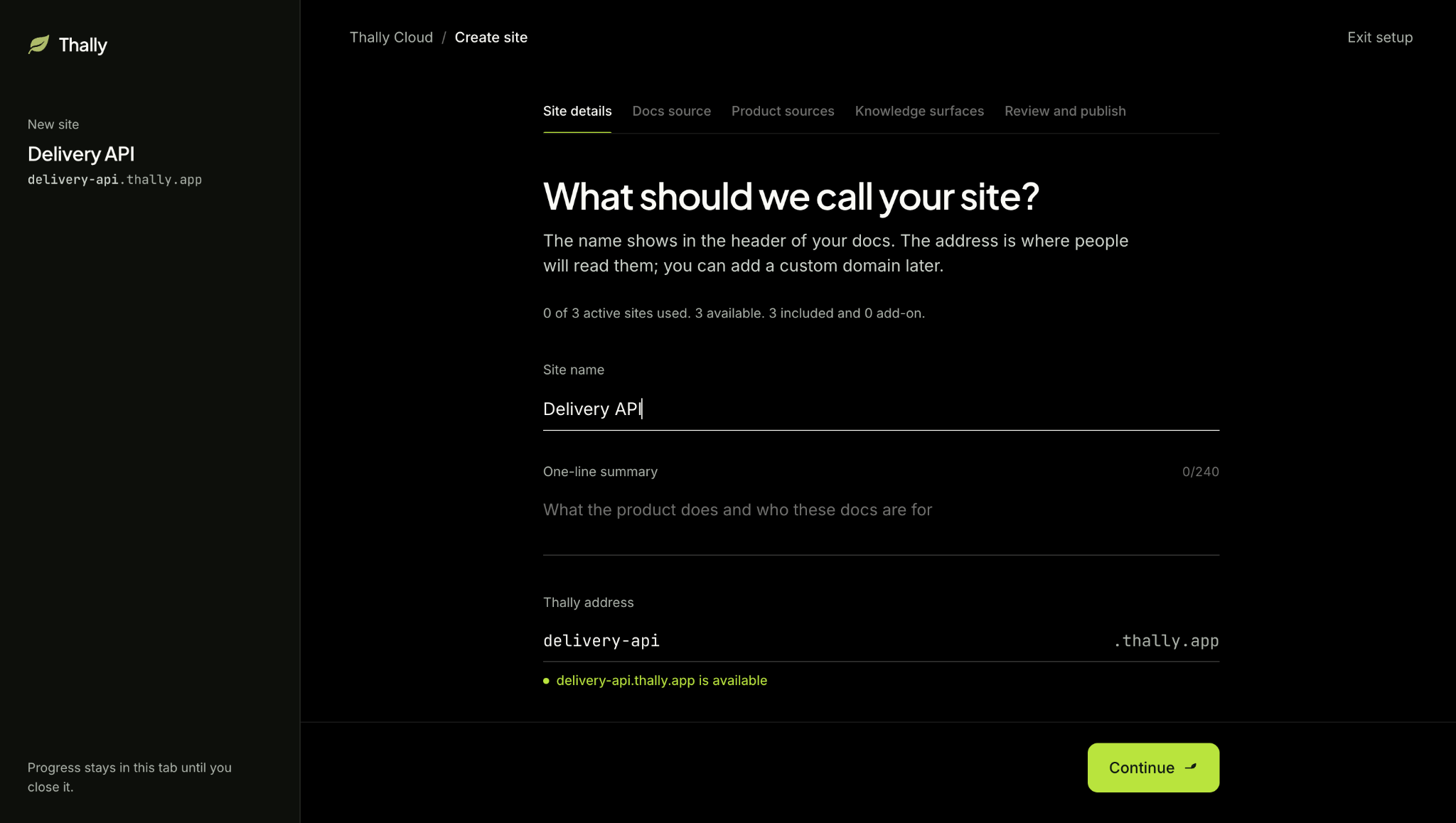
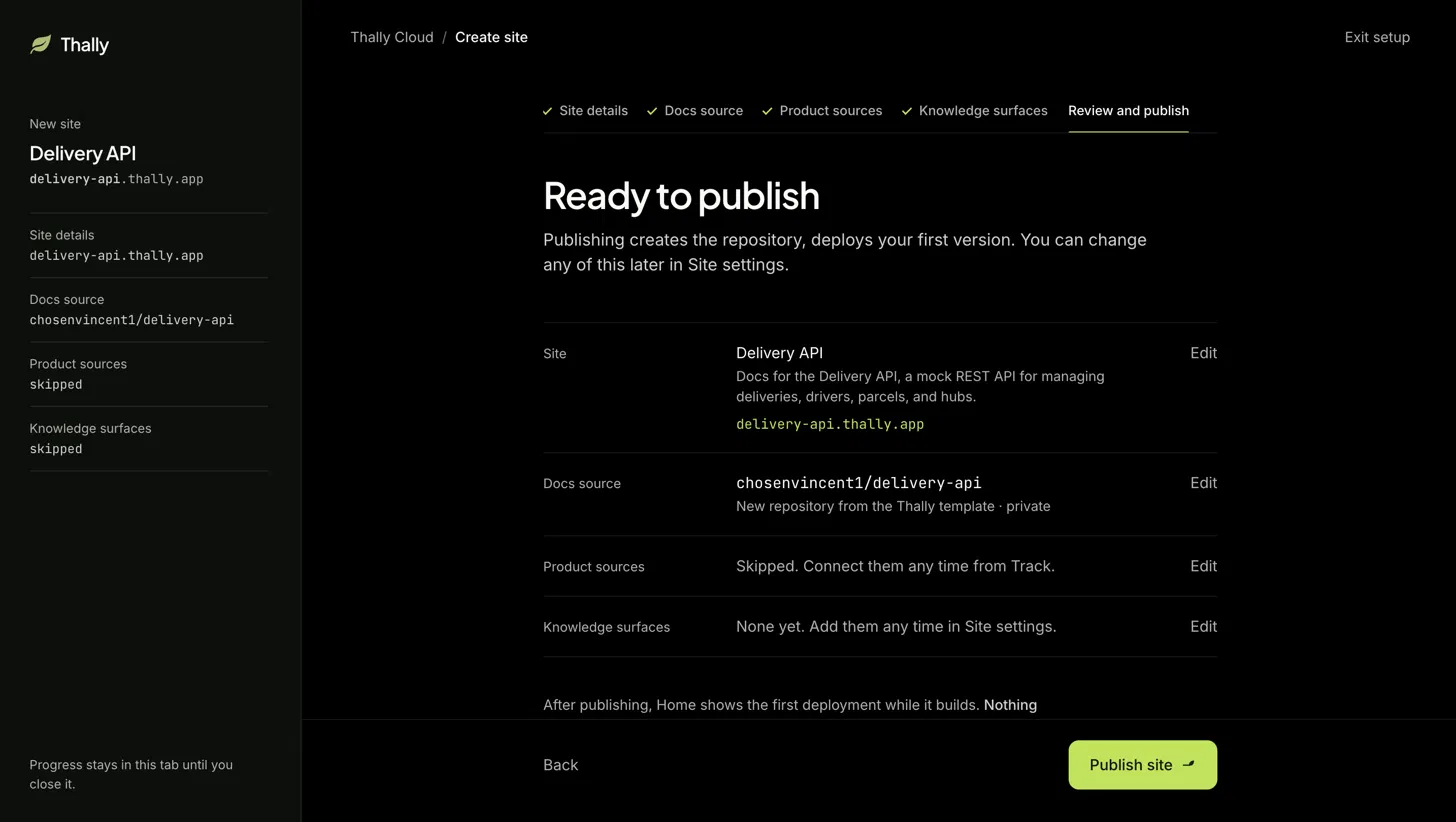
Your workspace opens on the Home page of your dashboard. Click Create a site to start the site setup. It has five steps:
- Site details
- Docs source
- Product sources
- Knowledge surfaces
- Review and publish
You only need the first two and the last one to get your site live. Product sources and Knowledge surfaces are optional.
Add your site details
Fill in three fields:
- Site name: shows in the header of your docs, for example
Delivery API. - One-line summary: what your product does and who the docs are for, in up to 240 characters.
- Thally address: where people will read your docs. Thally fills it in from your site name, for example,
delivery-api.thally.app. You can change the name before.thally.appif you want something different. Use lowercase letters, numbers, and hyphens.
You can add a custom domain later. Click Continue.
Choose where your docs live
Thally gives you three options:
- Create a new docs repository: Thally creates a new repo in your GitHub account, already set up with its starter pages and files.
- Import from a docs URL: Thally copies an existing public docs site into a new GitHub repo, using the site’s URL.
- Use an existing repository: connects a repo that’s already set up for Thally.
Select Create a new docs repository, then click Check GitHub to see whether the Thally GitHub app is installed. If it isn’t, click Install app and follow the prompts. The app asks for access to All repositories in your account, so review the permissions before you approve.
When GitHub is connected, click Continue with a new repository.
Connect product sources and knowledge surfaces (optional)
These two steps set up Thally Track, a feature that keeps your docs in sync with your product. Track reads merged pull requests in your product’s code repos and suggests docs updates when the code changes.
- Product sources: the repos that contain your product’s code, such as your API, SDKs, or CLI. Track watches these for changes.
- Knowledge surfaces: other repos that describe your product, like your website or help center. Thally can suggest updates to these too, as draft pull requests.
If you want Track now, select your repos on each step and click Continue. If not, click Skip for now on both steps. You can set it up later from the Track page in your dashboard. This guide skips both steps.
Review and publish
Check your settings, then click Publish site. Thally creates your docs repo and deploys the first version of your site.
Note: Publishing your site starts a 7-day free trial.
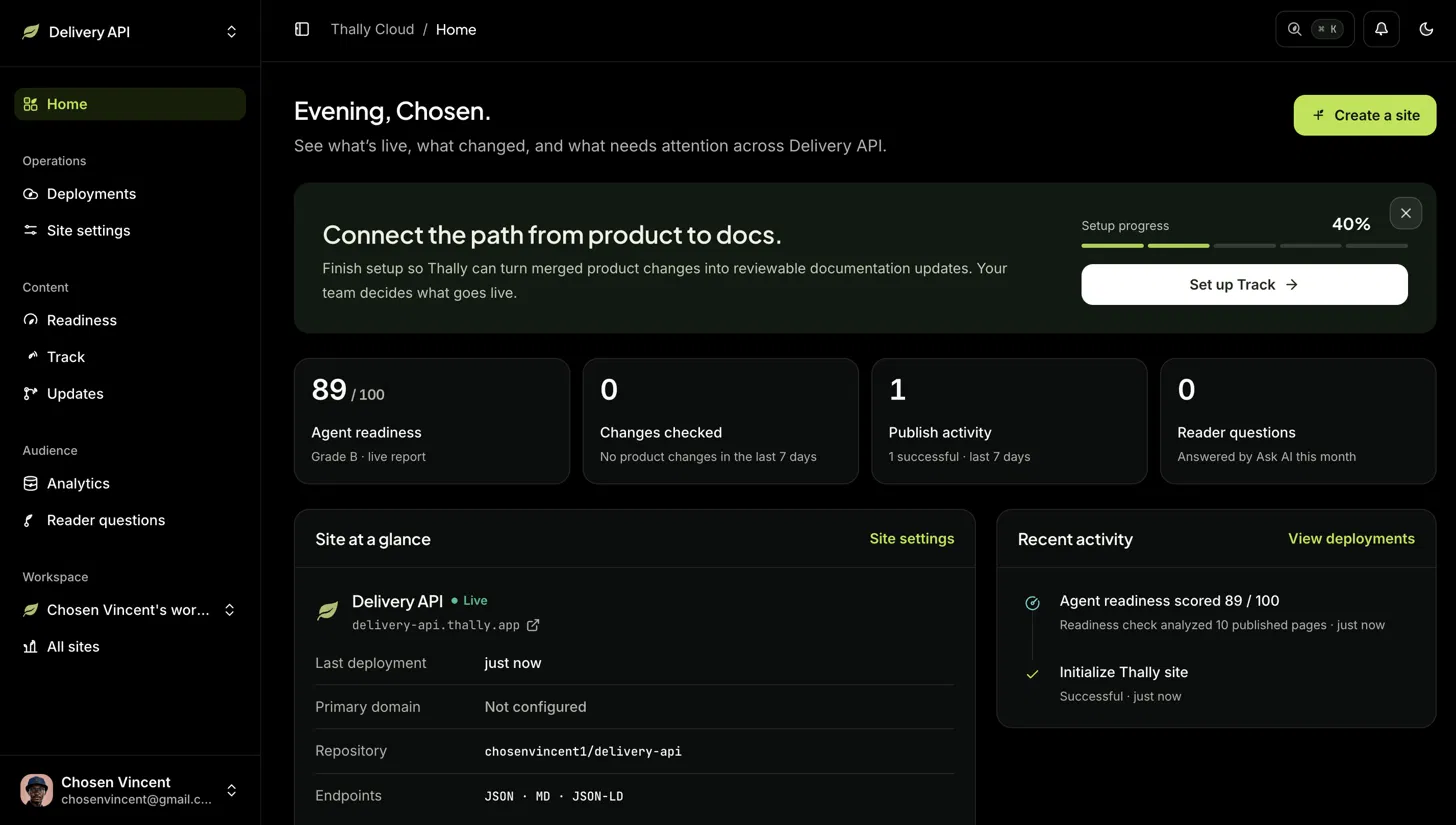
After a short wait, your dashboard shows your site as Live, with a link to its address.
Open the link to see the starter site Thally created for you. Next, you’ll set it up locally so you can replace the starter content with your own.
Step 2: Set up the project locally
Thally created a GitHub repo for your docs. In this step, you’ll copy that repo to your computer, run the site locally, and get to know the files you’ll edit.
Run the site locally
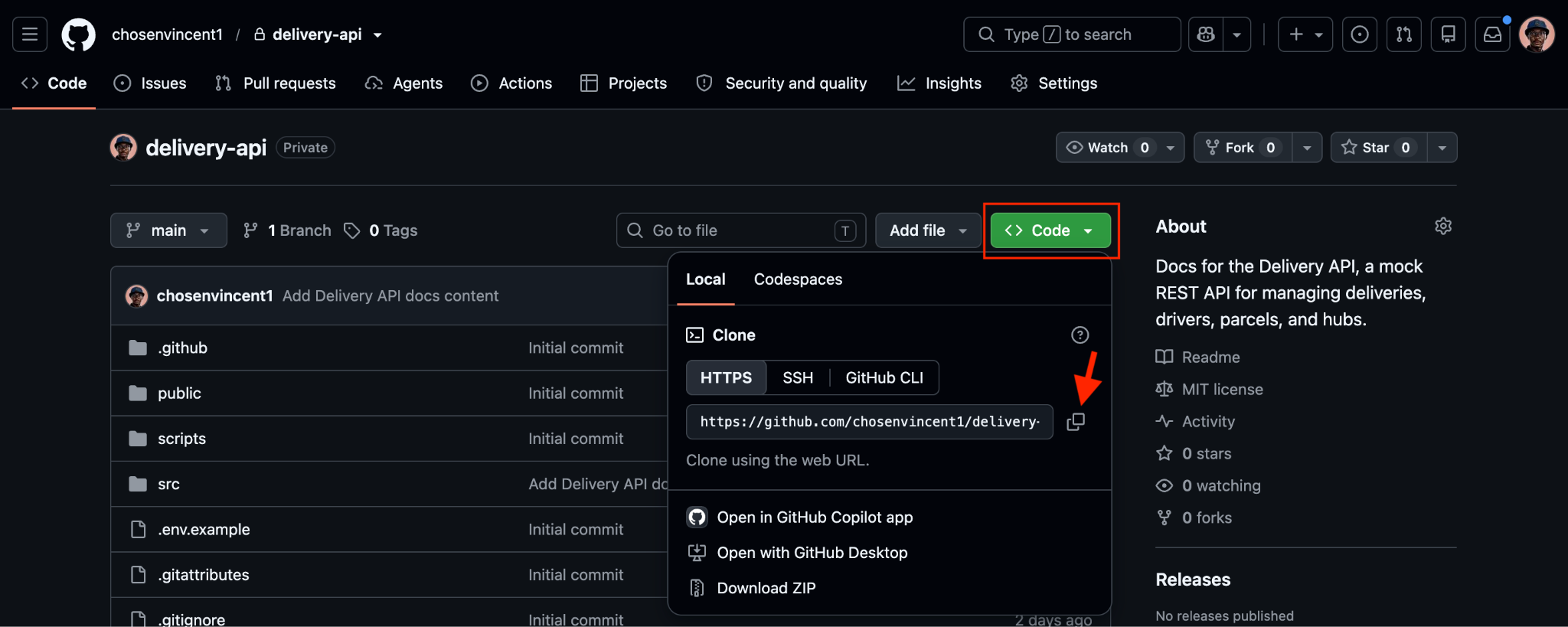
On your GitHub account, open the repo Thally created. It has the same name as your site’s address, for example, delivery-api. Click Code, then click the copy icon next to the HTTPS URL.
In your terminal, clone the repo and move into its folder. Replace the URL and folder name with your own:
git clone https://github.com/your-username/delivery-api.git
cd delivery-api
Install the project’s dependencies by running:
npm install
You may see some warnings while the packages install. They don’t stop the site from running.
Start the local server with:
npm run dev
When the terminal shows Ready, open http://localhost:3040 in your browser.
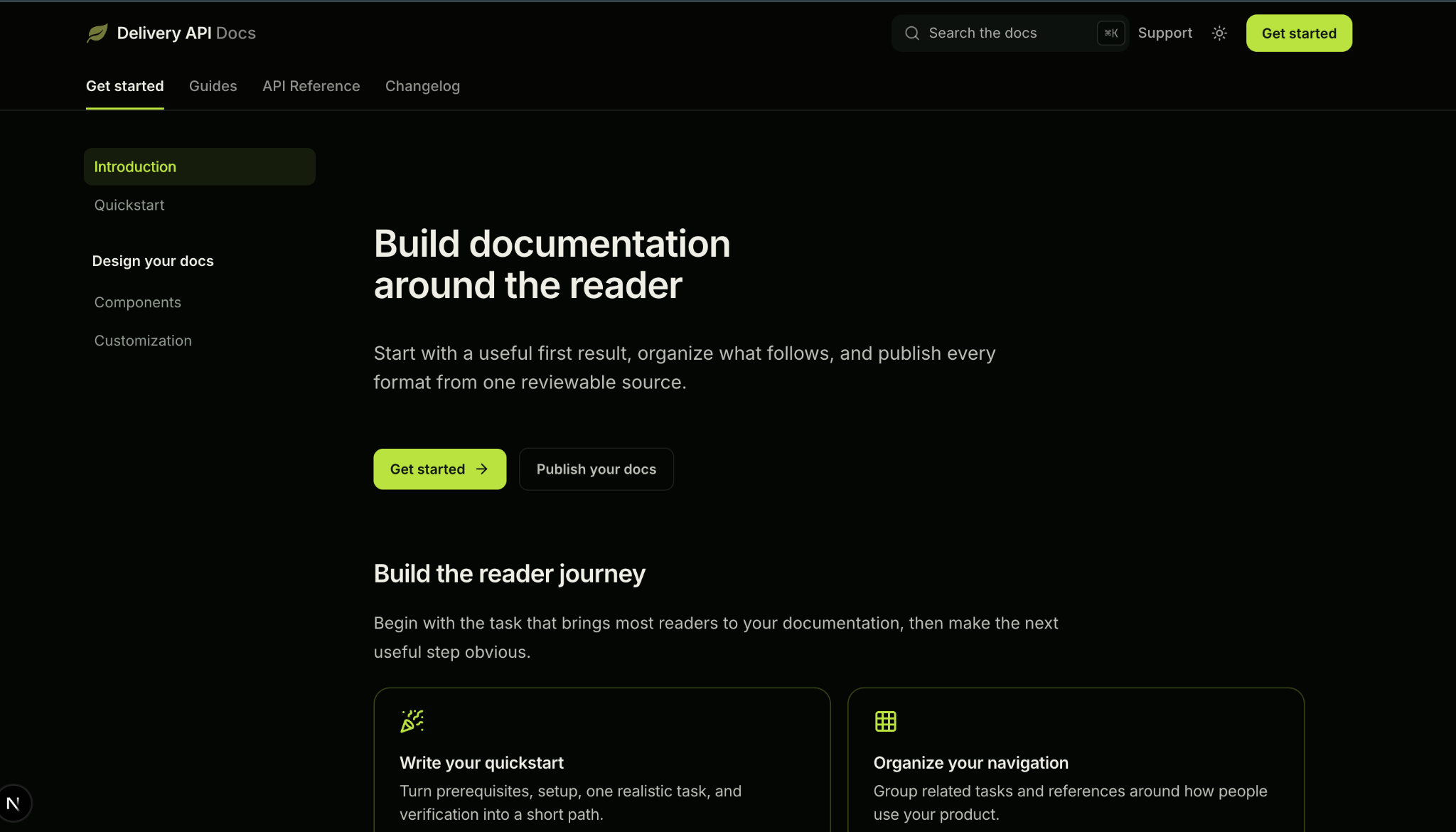
You’ll see the same starter site that’s live on your Thally address. Leave the server running while you work through the rest of this guide.
Make your repo public (optional)
Thally creates your docs repo as private. If you want to share the source code, for example, in a portfolio or with someone who doesn’t have access, make it public:
- In your repo on GitHub, click Settings.
- Scroll to Danger Zone at the bottom of the General page.
- Click Change visibility, then select Make public and confirm.
Before you do this, check that the repo doesn’t contain anything private, such as API keys in your pages or config files. Your site stays live either way, so you can skip this step if you don’t need to share the repo.
Know the files you’ll edit
The starter has a lot of files, but you’ll only work with five of them:
File or folder | What it controls |
| Your pages. Each page is an MDX file, and folders become part of the URL. For example, |
| Your site’s navigation: the tabs at the top, the groups in the sidebar, and the order of your pages. |
| Your site’s name, summary, and header links. Thally fills these in from your site details. |
| Your API spec. Thally generates your API reference from this file. |
| Your own components, if you need any beyond Thally’s built-in ones. This one’s optional. |
Here’s where you’ll find these files in the project:
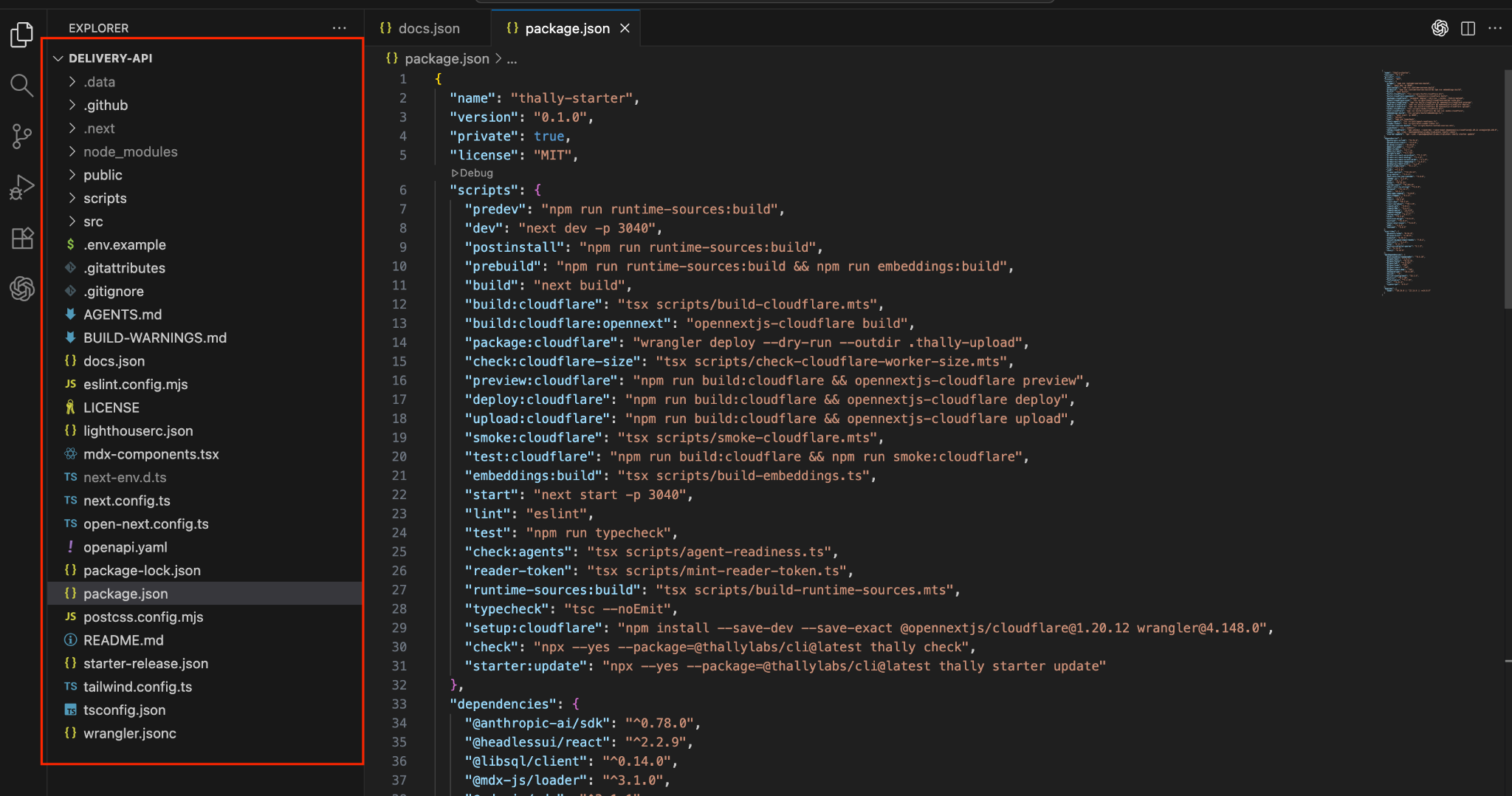
Most of the other files are managed by Thally and can change when Thally updates the starter. To check which files are safe to edit, open starter-release.json in the root folder. Its ownership section sorts the files into three groups:
"ownership": {
  "frameworkSyncEligible": [
    "src/components/**",
    "tailwind.config.ts",
    ...
  ],
  "userOwnedNeverOverwrite": [
    "src/content/**",
    "docs.json",
    "src/data/site.ts",
    "src/mdx/custom-components.tsx",
    "openapi.yaml",
    ...
  ],
  "manualReview": [
    "package.json",
    "next.config.ts",
    ...
  ]
}
userOwnedNeverOverwrite: files that are yours. Thally never overwrites them, so edit them freely. All five files in the table are here.frameworkSyncEligible: files Thally manages. When Thally updates the starter, it can replace them, so any changes you make may be lost.manualReview: files that both you and Thally may change, such aspackage.json. When an update touches them, you review the changes before they’re applied.
Thally doesn’t update these files without asking. It checks for starter updates once a week and opens a pull request, which you review and merge yourself.
Next, open AGENTS.md, also in the root folder. It’s written for AI coding tools, but it’s useful for you too. It lists the rules your content needs to follow, such as:
- Every page needs
titleanddescriptionfrontmatter. - Every page must be listed in
docs.json. - Run
npm run checkbefore you publish.
You’ll follow these rules in the next steps, starting with your home page.
Step 3: Write your home page
Your home page is the first page readers see, so it should tell them what your product does and where to go next. Open src/content/introduction.mdx. It already uses three of Thally’s built-in components:
Hero: the large title and summary at the top of the pageCardGroupandCard: clickable cards that link to other pagesNote: a highlighted box for important information
Replace the starter content with your own, keeping the same components. Start with the frontmatter and the Hero:
---
title: Introduction
description: Learn what the Delivery API does, what to know before you use it, and where to start.
mode: home
---

<Hero
  title="Delivery API"
  subtitle="A mock REST API for managing deliveries, drivers, parcels, and hubs."
/>
mode: home tells Thally to show the page as a landing page. The Hero also accepts primaryLabel, primaryHref, secondaryLabel, and secondaryHref if you want buttons under the summary. They’re optional.
Next, add cards that point readers to their most likely next step:
## Start here
<CardGroup cols="2">
  <Card title="Make your first request" icon="party-horn" href="/quickstart">
    Get a token, list deliveries, and filter the results in three steps.
  </Card>
  <Card title="Browse the API reference" icon="code-simple" href="/api">
    See every endpoint and try requests from your browser.
  </Card>
</CardGroup>
Use Note for anything readers must know before they start:
<Note type="info" title="This is a mock API">
  The Delivery API is built for learning and testing, so it behaves differently
  from a production API in a few ways.
</Note>
Save the file. Thally compiles your MDX pages before the server starts, so to see your changes, run this in a second terminal while npm run dev keeps running:
npm run runtime-sources:build
After the command finishes, your browser updates to show the changes. If it doesn’t, refresh the page.
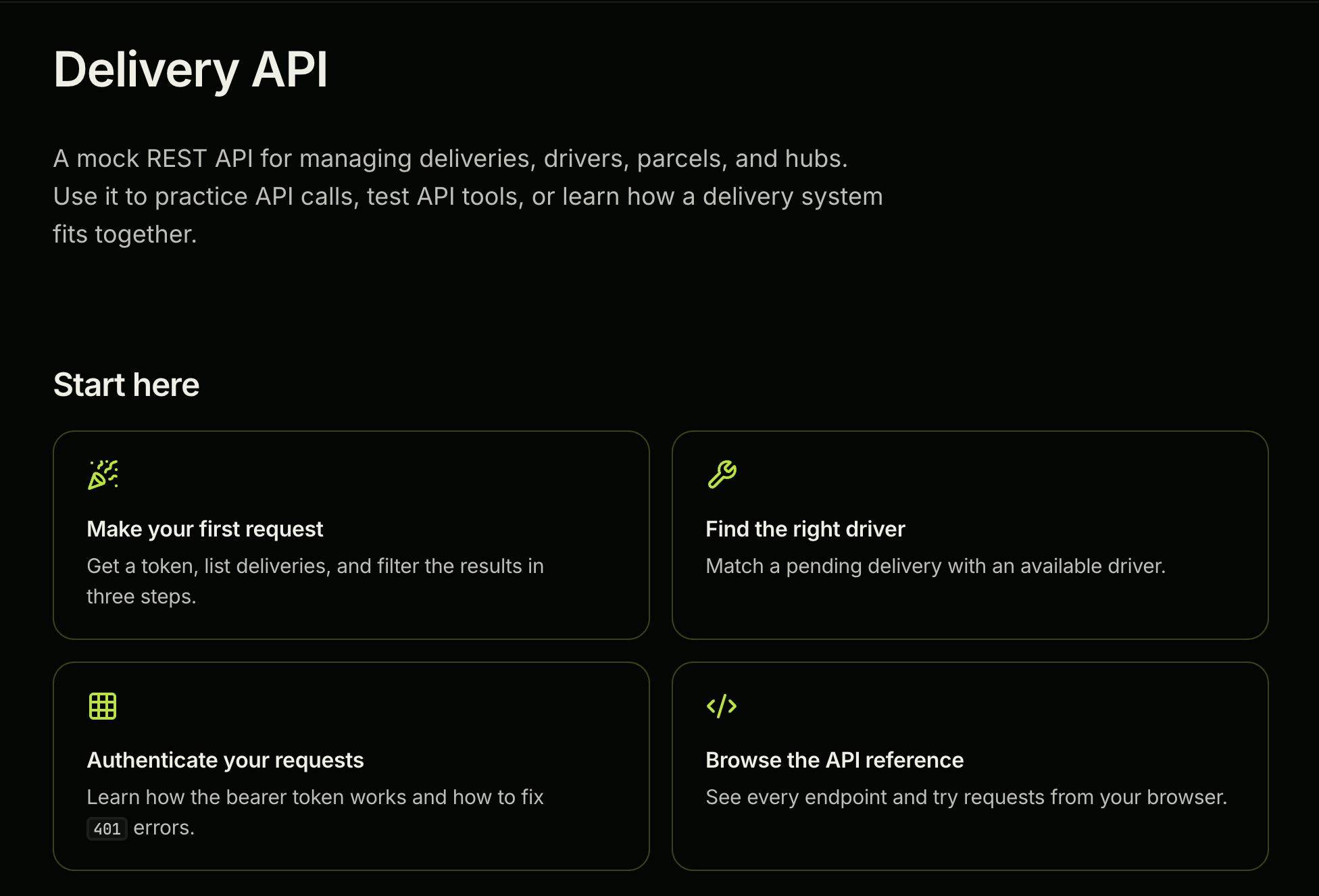
Next, you’ll add the rest of your pages.
Step 4: Add your pages
Every page follows the same process: create an MDX file in src/content/, then add it to docs.json. In this step, you’ll add a quickstart, an authentication page, and a guide.
Create a page
Open src/content/quickstart.mdx and replace the starter content with your own. Every page starts with frontmatter, which needs a title and a description:
---
title: Quickstart
description: Get an access token, list deliveries, and filter the results in three steps.
---

In this guide, you'll get an access token, list deliveries, and filter the
results.
For step-by-step content, use a heading for each step:
## Step 1: Get your token

Send any username and password to the login endpoint:

```bash
curl -X POST https://mock-delivery-api.onrender.com/auth/login \
  -H "Content-Type: application/json" \
  -d '{"username": "demo", "password": "password123"}'
```
Thally lists your headings in the On this page menu on the right, so readers can jump straight to the step they need.
To add a page that doesn’t exist in the starter, create a new file. For example, create src/content/authentication.mdx with its own title and description, then write the page.
Save your changes and run npm run runtime-sources:build to see them. If a new page doesn’t appear yet, that’s expected: Thally only shows pages listed in docs.json. You’ll add it there next.
Add the page to your navigation
Open docs.json. The tabs section controls what readers see in the navigation:
tab: a tab at the top of the site. This site has four: Get started, Guides, API Reference, and Changelog.group: a labeled section in the sidebar, under a tab. A tab can have more than one group, for example, a Get started group and an Advanced group.pages: the pages inside a group, in the order they appear.
If a group has the same name as its tab, Thally doesn’t show the group’s heading, so its pages appear at the top of the sidebar on their own.
Add your new page to the pages list. Use the file’s path inside src/content/, without the .mdx extension:
"tabs": [
  {
    "tab": "Get started",
    "groups": [
      {
        "group": "Get started",
        "pages": ["introduction", "quickstart", "authentication"]
      }
    ]
  }
]
The starter also includes a Design your docs group with two example pages, components and customization. If you don’t need them, remove the group from docs.json now. You’ll delete the files themselves in Step 7.
Save the file and run npm run runtime-sources:build. Your new page now appears in the sidebar.
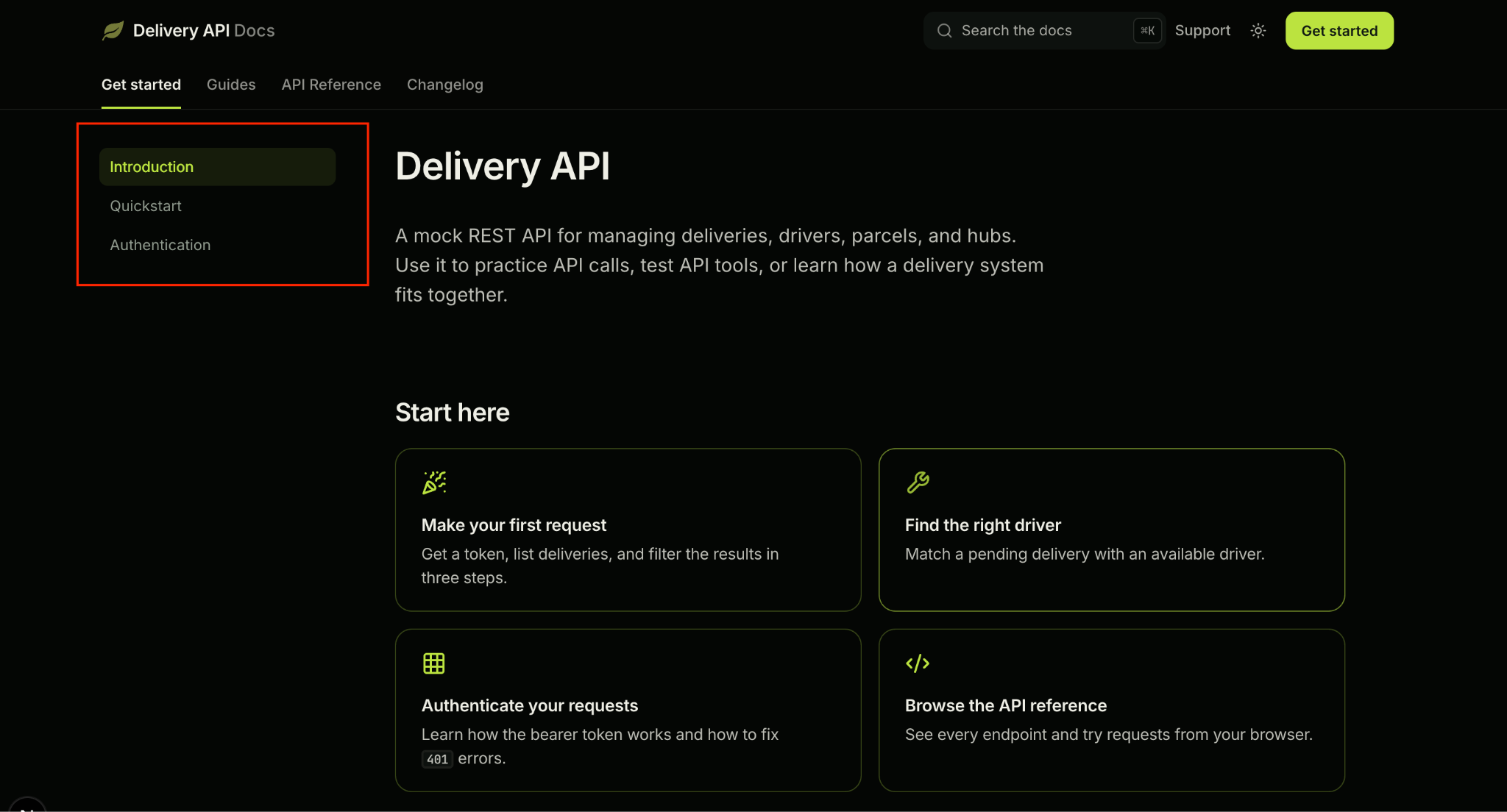
If a page is missing from docs.json, it won’t appear in the sidebar, and npm run check warns you that it’s an orphan page.
Add a guide
Guides work the same way as other pages, but they live in a subfolder so they’re grouped together. Create a new file at src/content/guides/find-the-right-driver.mdx:
---
title: Find the right driver for a delivery
description: Match a pending delivery with an available driver in the right location.
---

In this guide, you'll find a delivery that needs a driver, filter drivers by
location and vehicle, check who's free, and assign the best match.

## Step 1: Find a pending delivery
Then write the rest of the guide, using the same ## Step headings as your quickstart.
In docs.json, find the Guides tab. The starter fills it with three example guides about Thally. Replace them with your own guide, and include the folder name in the path:
{
  "tab": "Guides",
  "groups": [
    {
      "group": "Guides",
      "pages": ["guides/find-the-right-driver"]
    }
  ]
}
Because the group has the same name as the tab, your guide appears at the top of the Guides sidebar with no extra heading. As you add more guides, you can split them into groups with different names, like Deliveries and Drivers.
Save your changes and run npm run runtime-sources:build. Your guide now appears under the Guides tab.
You’ll delete the starter’s example guide files in Step 7, along with the other unused pages. Next, you’ll generate your API reference.
Step 5: Generate your API reference
You don’t write your API reference page by page. Thally generates it from your OpenAPI file, with a page for every endpoint, request examples in several languages, and a Try it button readers can use to send real requests.
Add your OpenAPI file
The starter includes a sample spec at openapi.yaml in the root folder. Replace it with your own, keeping the same file name and location.
In docs.json, the API Reference tab already points to this file:
{
  "tab": "API Reference",
  "groups": [
    {
      "group": "Overview",
      "pages": ["api/introduction"]
    }
  ],
  "api": {
    "source": "openapi.yaml"
  }
}
Thally builds the reference from your spec:
- Each tag becomes a group in the sidebar, like Auth or Deliveries.
- Each endpoint’s summary becomes its page title, like Log in and get a token.
Thally sorts the groups alphabetically, so they may not follow the order of the tags list in your spec.
The API Reference tab also opens with an overview page, src/content/api/introduction.mdx. Rewrite it for your API with your base URL, how to authenticate, and how to try a request. Its frontmatter has an extra field, navTitle, which sets the shorter name shown in the sidebar:
---
title: API overview
navTitle: Overview
description: What this API reference covers and how to try requests from your browser.
---
Save your changes and run npm run runtime-sources:build.
Try a request
Open the API Reference tab and select any endpoint.
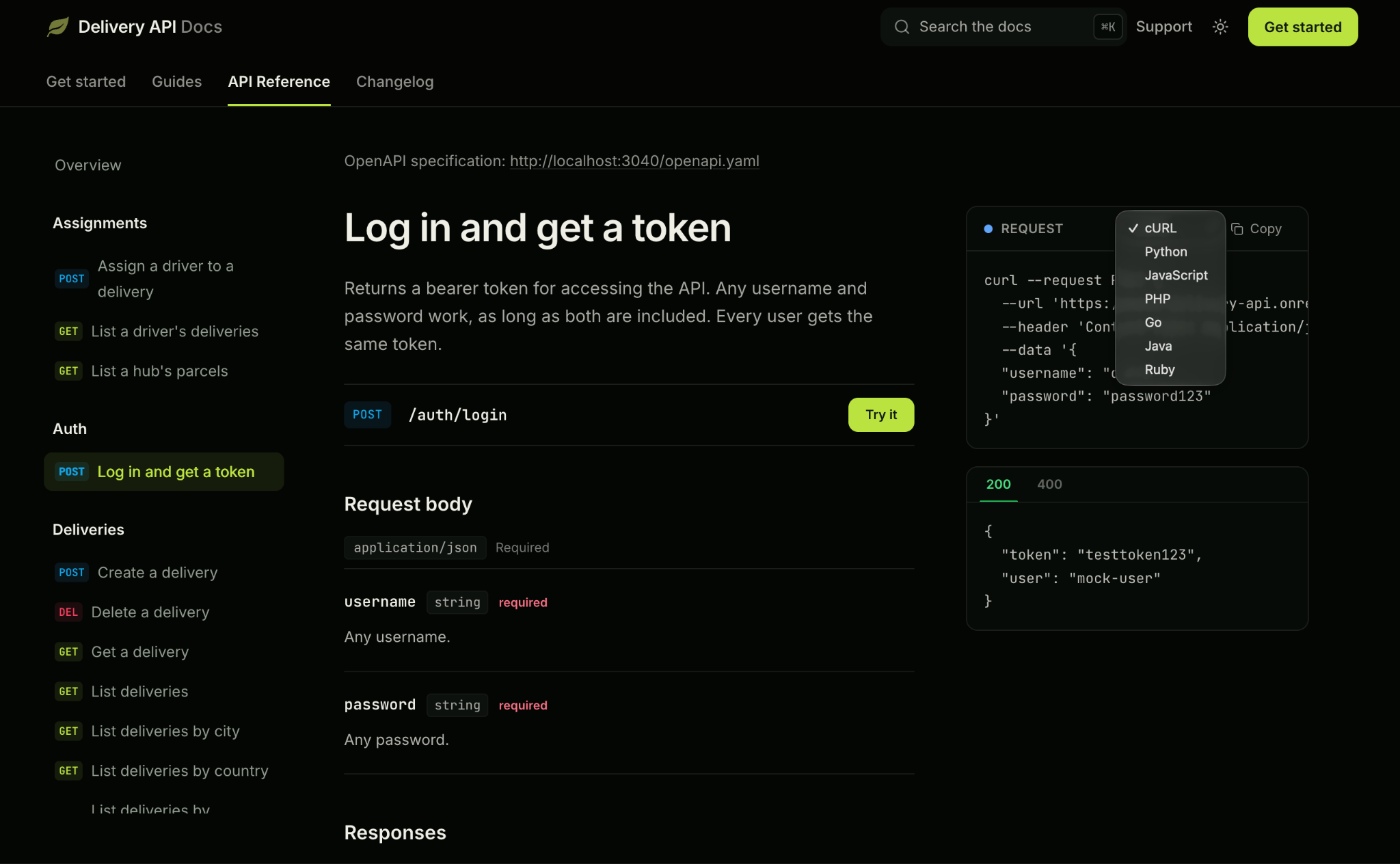
Each endpoint page shows the request body, parameters, and responses from your spec. The Request panel on the right shows an example request, and you can switch it between cURL, Python, JavaScript, PHP, Go, Java, and Ruby. Below it, the response panel has a tab for each status code in your spec, like 200 and 400.
To send a real request, click Try it. A panel opens with the request filled in from your spec. Edit any values you want, like the request body fields, then click Send. For endpoints that need a token, enter it in the Authorization field. The response appears under Result.
Your site now has all its content. Next, you’ll add a custom component, or skip to Step 7 if you don’t need one.
Step 6: Add a custom component (optional)
Thally’s built-in components cover most pages, but you can add your own. For example, the Hero only shows buttons at the top of the page. To add the same buttons at the bottom of your home page, create an ActionButtons component.
Open src/mdx/custom-components.tsx and replace its contents with this:
import type { MDXComponents } from 'mdx/types'
import Link from 'next/link'
import { ArrowRight } from 'lucide-react'

interface ActionButtonsProps {
  primaryLabel: string
  primaryHref: string
  secondaryLabel?: string
  secondaryHref?: string
}

function ActionButtons({
  primaryLabel,
  primaryHref,
  secondaryLabel,
  secondaryHref,
}: ActionButtonsProps) {
  return (
    <div className="not-prose mt-8 flex flex-wrap items-center gap-3">
      <Link
        href={primaryHref}
        className="inline-flex items-center gap-2 rounded-[9px] bg-primary px-4 py-2 text-[0.84rem] font-semibold text-primary-foreground transition hover:brightness-125"
      >
        {primaryLabel}
        <ArrowRight className="h-4 w-4" aria-hidden="true" />
      </Link>
      {secondaryHref && secondaryLabel ? (
        <Link
          href={secondaryHref}
          className="inline-flex items-center gap-2 rounded-[9px] border border-border bg-background px-4 py-2 text-[0.84rem] font-semibold text-foreground transition hover:border-accent"
        >
          {secondaryLabel}
        </Link>
      ) : null}
    </div>
  )
}

export const customComponents: MDXComponents = {
  ActionButtons,
}
Any component listed in customComponents can be used in any MDX page. Use it in src/content/introduction.mdx:
<ActionButtons
  primaryLabel="Get started"
  primaryHref="/quickstart"
  secondaryLabel="Browse the API"
  secondaryHref="/api"
/>
Run npm run runtime-sources:build to see the buttons.
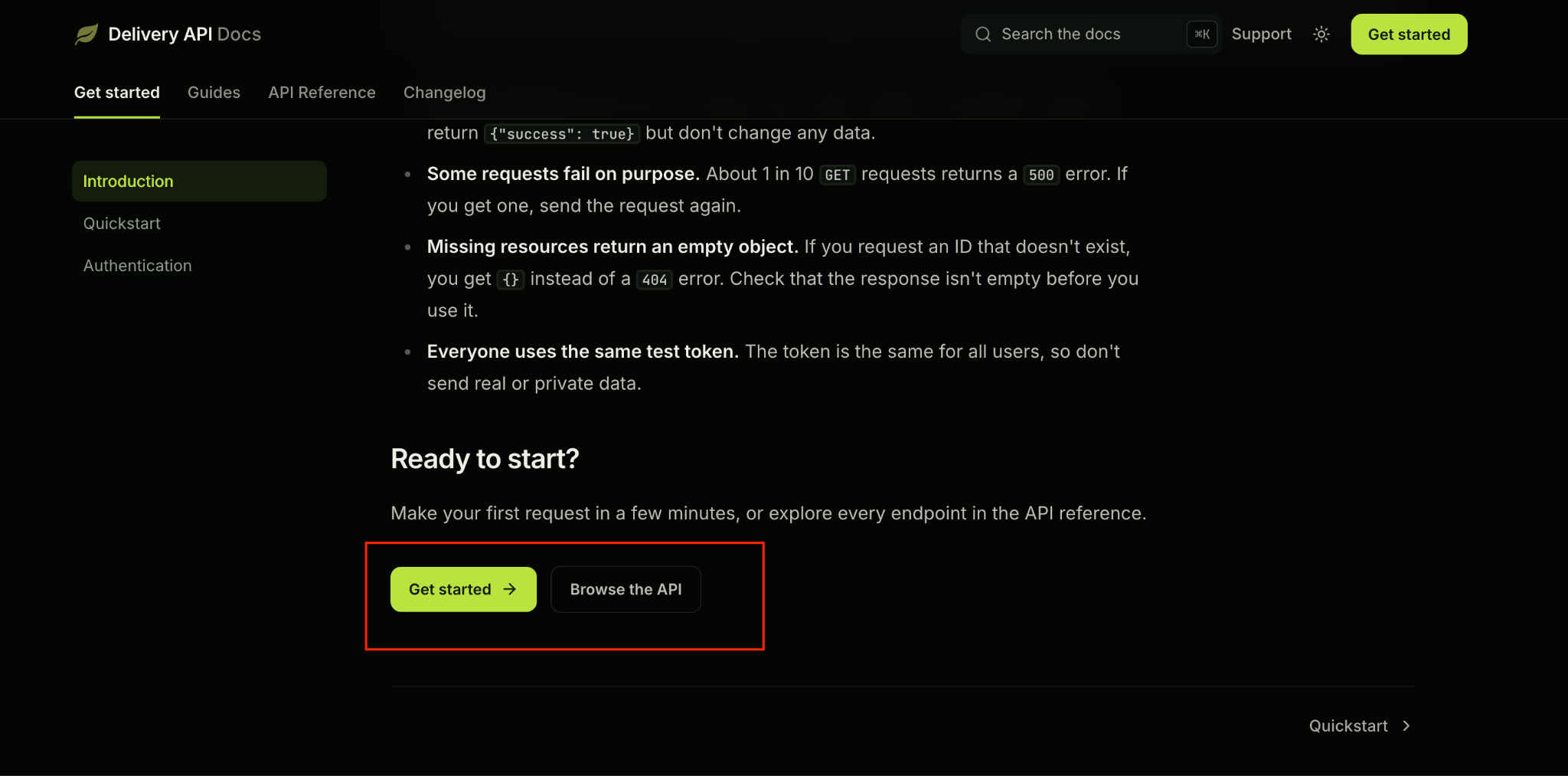
The button classes are copied from the Hero in src/components/mdx/rich-content.tsx. Tailwind only creates CSS for classes it finds in the files and folders listed in tailwind.config.ts. src/mdx/ isn’t one of them, so a new class like px-[16px] won’t apply unless it’s already used somewhere Tailwind scans. Since Thally manages tailwind.config.ts, reusing classes from its built-in components is the reliable fix.
Your site is now ready to publish.
Step 7: Clean up, check, and publish
The starter includes example pages about Thally. Delete any you aren’t using from src/content/. For this site, that’s:
components.mdxandcustomization.mdxguides/create-a-site.mdx,guides/work-with-the-cli.mdx, andguides/connect-ai-tools.mdxapi/authentication.mdx, since this site’s authentication page lives under Get started instead
Make sure none of them are still listed in docs.json.
Next, check your site for errors:
npm run check
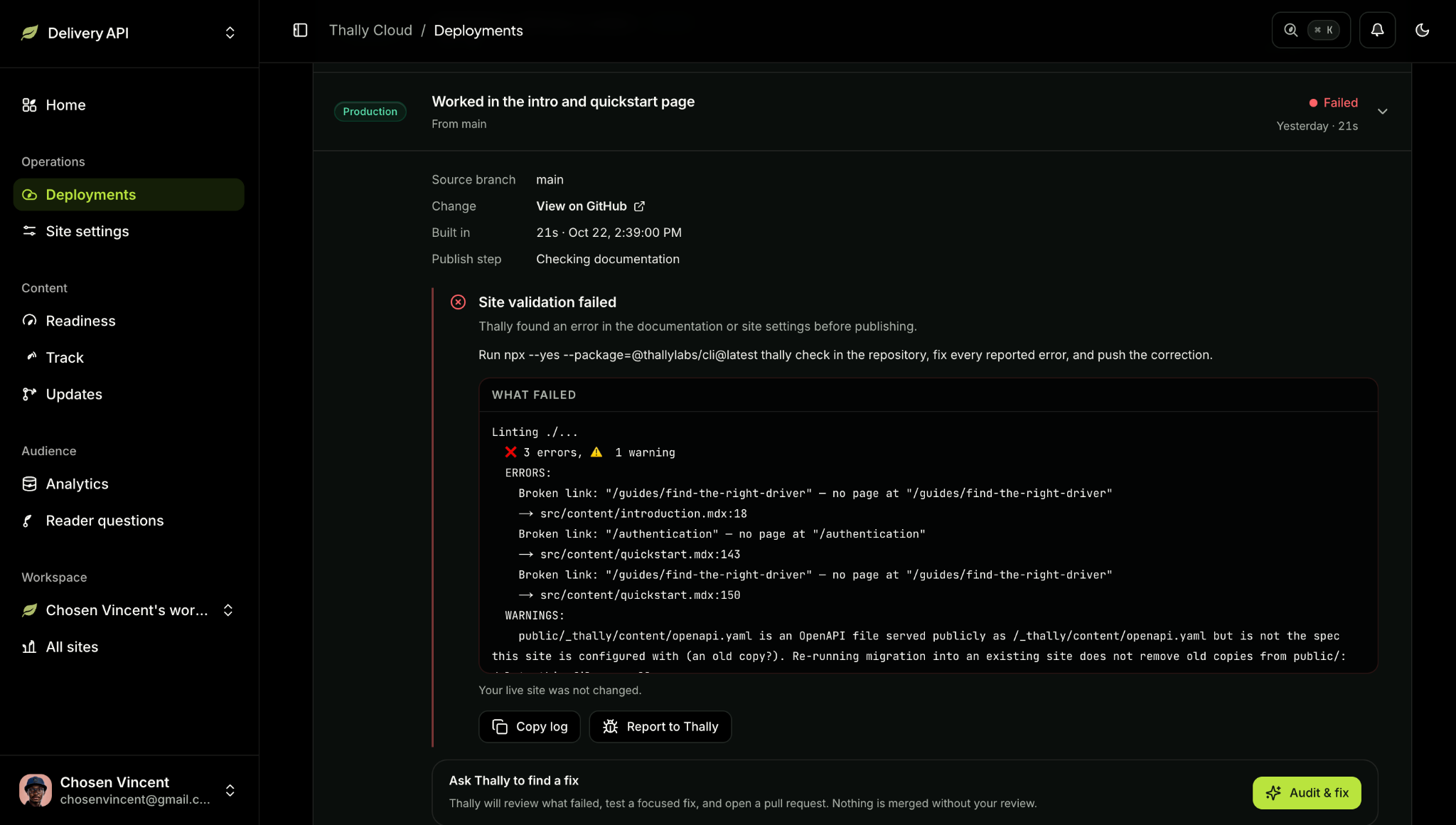
The check looks for problems like broken links and pages missing from docs.json. If it finds any, it shows where each one is, so you can fix them before you publish.
Thally runs the same check when you push. When I pushed before creating all my pages, the deploy failed on broken links, and Thally’s dashboard showed each one with its file and line. My live site stayed unchanged until I fixed them.
When the check shows No issues found, commit and push your changes:
git add .
git commit -m "Add Delivery API docs content"
git push
Thally checks and deploys your site automatically. Open the Deployments page in your dashboard to follow the progress.
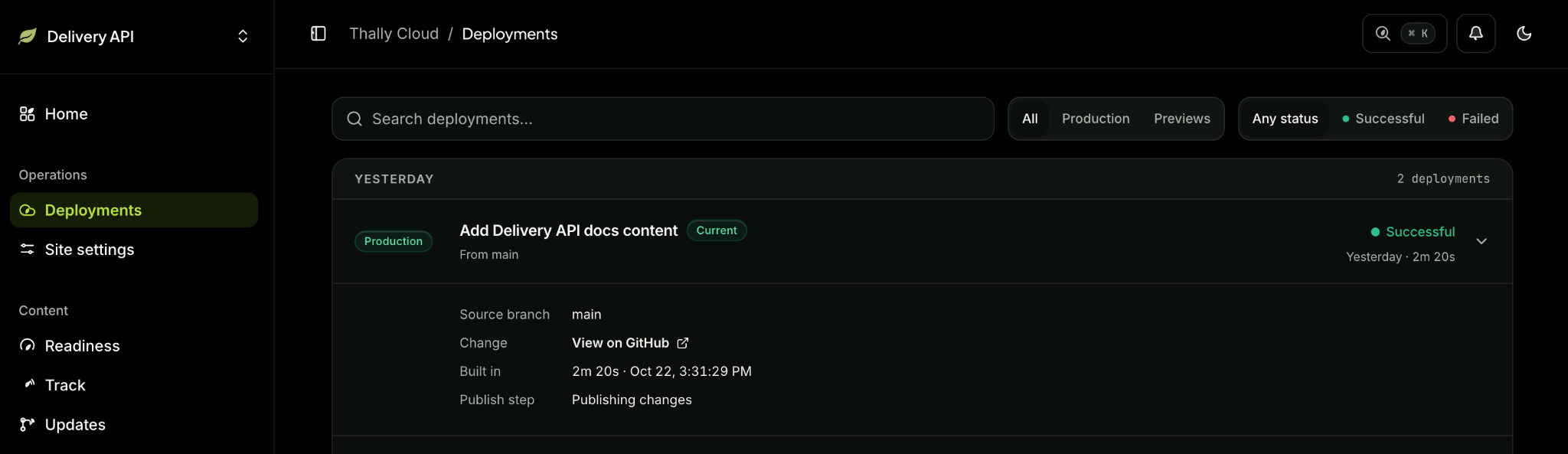
When the deploy finishes, open your site’s address. Your docs are now live.
Troubleshooting
Here are the problems you’re most likely to run into, and how to fix them:
- Your changes don’t appear in the browser: run
npm run runtime-sources:buildin a second terminal whilenpm run devis running. If the page still doesn’t update, refresh your browser. - A page is missing from the sidebar: add it to the
pageslist indocs.json, using its path insidesrc/content/without the.mdxextension. npm run checkor your deploy reports errors: the output shows where each problem is. Broken links usually mean a linked page doesn’t exist yet, and orphan warnings mean a page isn’t listed indocs.json. Fix them and run the check again.- Your custom component’s spacing or sizing doesn’t apply: use classes from Thally’s built-in components in
src/components/mdx/rich-content.tsx, as explained in Step 6.
Next steps
You now have a live API docs site with a home page, a quickstart, an authentication page, a guide, and a generated API reference. Every time you push a change, Thally checks it and publishes your site.
You can see the finished example here:
- Live site: delivery-api.thally.app
- Source code: github.com/chosenvincent1/delivery-api
From here, you can:
- Set up Track, so Thally suggests docs updates when your product’s code changes
- Add a custom domain, such as docs.yourcompany.com
- Add more guides, using the same steps from Step 4
About the author
- Technical writer with 3+ years of experience creating developer-facing documentation for software products and DevOps tooling. I specialize in writing content that targets senior engineers, covering observability, Kubernetes, distributed tracing, API documentation, and infrastructure monitoring. My work spans the full range from conceptual explainers to deep troubleshooting guides, written for audiences who will immediately know if the technical detail is wrong.
Comments
Join the discussionNo comments yet. Be the first to comment.


